Soccer guide
Keep soccer score from the stands. Family and friends watch live.
For the parent with the phone on the sideline. One tap per goal, overtime and penalty kicks included. Grandparents, parents stuck at work and anyone who couldn't make it follow every goal from one link, with nothing to install.
No account needed. Set up a game in about 30 seconds.
In 30 seconds
Reading this on the sideline before kick off? This is all you need.
- Pick soccer, name the teams Tap Create an event, then Soccer. Type both team names and tap Save & get the link.
- Text the link to family Text the link opens your phone's share sheet with the message ready. Send it to the family group chat.
- Kick off, then tap each goal Tap Kick off at the whistle. When a team scores, tap its Goal button.
Step by step
From setup to the final score, in the order you'll meet each screen. Words in bold are exactly what the buttons say.
-
Set up the game
Open gamedayscore.live and tap Create an event, then Soccer. Type the away and home team names and pick a color for each.
Under Game length, pick 2 halves or 4 quarters. Under If it's tied at the end, pick one of four: Can end in a tie, Penalty kicks decide it, Overtime, then can end tied or Overtime, then penalty kicks. Then tap Save & get the link.
Setting up needs a signal, so do it before you reach the field if the signal there is weak. Scoring works without one.
2 halves Or 4 quarters, with halftime after Q2If tied A tie, penalty kicks, or overtime first -
Share the link
Text the link opens your phone's share sheet with the message already written. Pick the family group chat and send. Copy puts the link on your clipboard, and the QR code button next to Text the link shows a code that parents standing near you can scan.
Live score for Away Team at Home Team soccer. Keep this open, it updates on its own: gamedayscore.live/e/7QK4M2XT
Further down is Copy my scorer link. That one is for you only: it's how you carry on from another phone. Then tap Start scoring.
“Anyone with this link can change the score. Send it only to yourself.” Family gets the live page link, never the scorer link.
-
Kick off
Until the game starts, your screen says Not started and the live page “Not started yet”. Tap Kick off at the whistle and the live page shows the 1st half.
Forgot? A first goal starts the game too.
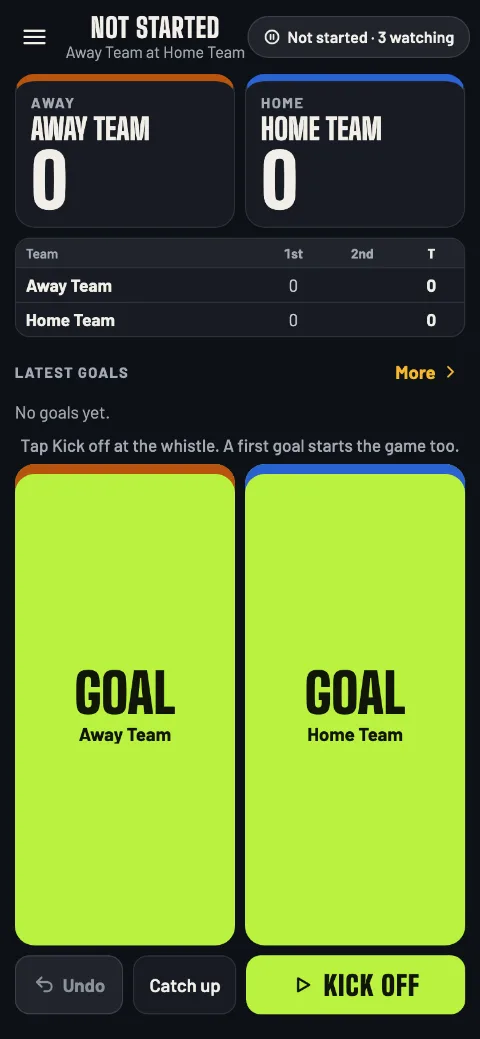
Not started: Kick off at the whistle -
Tap each goal
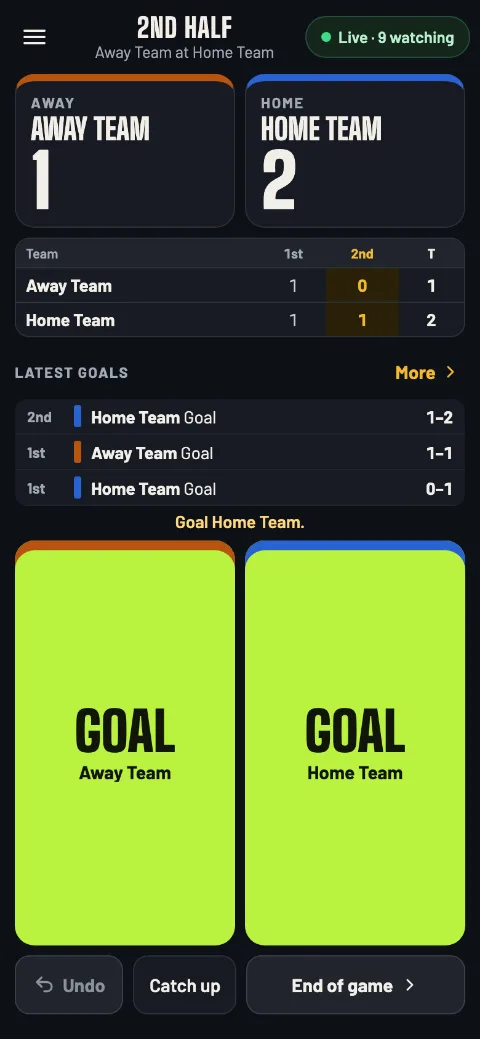
Each team has one big Goal button, away on the left and home on the right. Tap it when that team scores. The screen stays on while you score.
The score by period and Latest goals sit above the buttons. More opens every goal of the game.
A Goal button for each team -
Fix a mistake
Undo steps back one action at a time: a goal, the end of a period, kick off. Tap it again to keep going back.
Noticed a wrong goal later? Use Catch up (step 7) to set the right score. The live page follows every fix as soon as it's sent.
Undo The last thing you tapped, one at a timeCatch up Set the right goals for any period -
Halftime and quarters
The app keeps no clock, so you end each period. At the half, tap Halftime at the bottom of the screen; when play resumes, tap Start the 2nd half. Not yet takes it back.
Playing quarters? End Q1 asks End of Q1?, and Start Q2 carries on.
Meanwhile family's page shows “Halftime” or “End of Q1” and when it started, so a break doesn't look like lost signal.
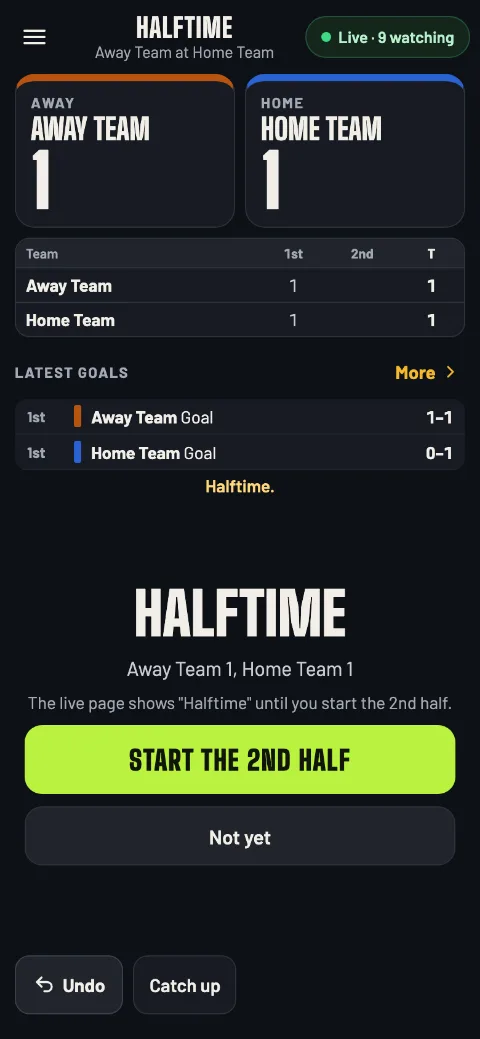
Halftime: start the 2nd half when play resumes -
Joined late or missed a goal?
Tap Catch up (also Catch up / edit score in the menu). Type each team's goals in each period from the scoreboard, pick the Period now, and tap Save & keep scoring.
What changed goes into the goal list as “Caught up”. If a number went down, it's “Score corrected”, and the live page says Score corrected at 7:31 PM.
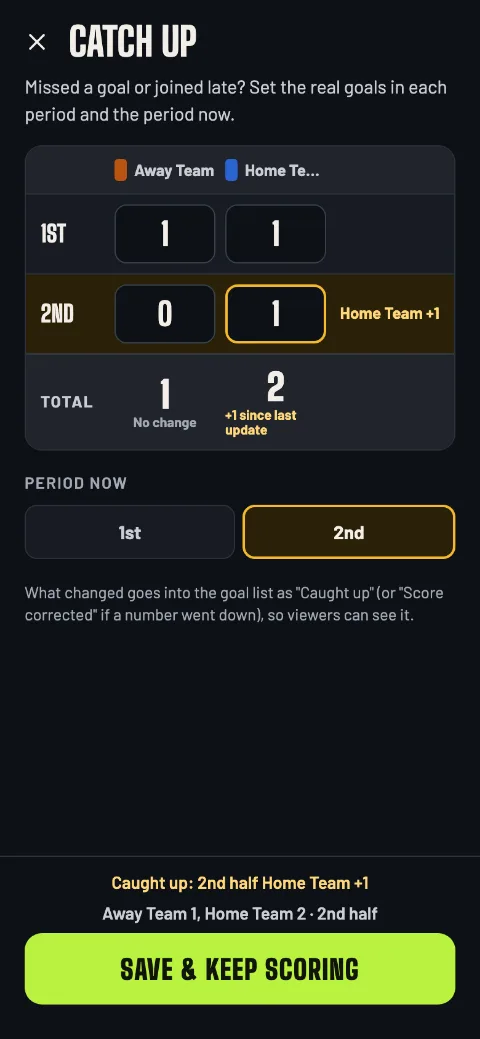
Catch up, period by period -
No signal at the field
Keep tapping. Every goal is saved on your phone first, and the pill at the top counts what's waiting, like Offline · 3 to send. Your taps go out by themselves, in order, as soon as there's a signal.
Meanwhile family's page reads Delayed after 2 minutes without news, then catches up when your taps arrive.
Leave the app open until the count is gone. Anything still waiting when you close it is sent the next time you open the app.
Handing the phone job to another parent? They open your scorer link on their phone and carry on. Let your phone send everything first: taps a phone never sent are dropped when the other phone takes over.
-
End of the game, overtime and penalty kicks
After the 2nd half (or Q4), tap End of game. The app asks Game over?: Finish game makes it final, and Not yet, undo takes it back.
Tied? The button follows your setup: End as a tie, Start OT1 (two full overtime periods, no golden goal) or Go to penalty kicks.
In penalty kicks, tap +1 for each kick a team makes (− takes one back). The goals don't change. When a team leads, its button reads like Home Team wins 4–3 on PKs · Finish; the app checks once more before it ends the game, because penalty kicks can't be changed after the game.
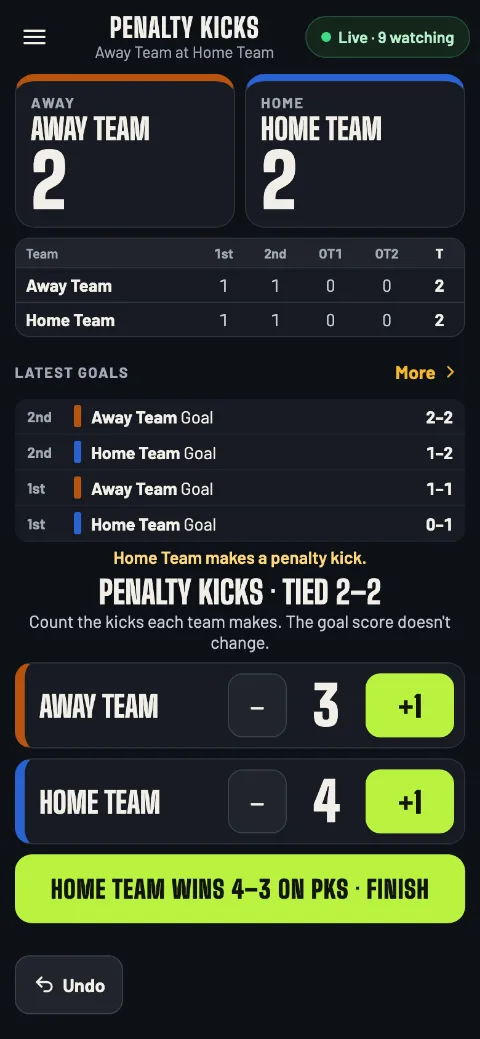
Penalty kicks, counted apart from the goals -
The final, and fixing it
The final screen shows the winner, the score by period and every goal. Text the final score sends the recap, and Copy copies it:
Final: Home Team 2, Away Team 1
Got a goal wrong? Edit scores fixes any period; tap Save scores. The game stays final and the live page shows the corrected score. Penalty kicks can't be edited: if an edit makes the goals unequal, the penalty kick result no longer counts.
New match sets up the next game with the same teams and settings. Back to home goes to your list of games.
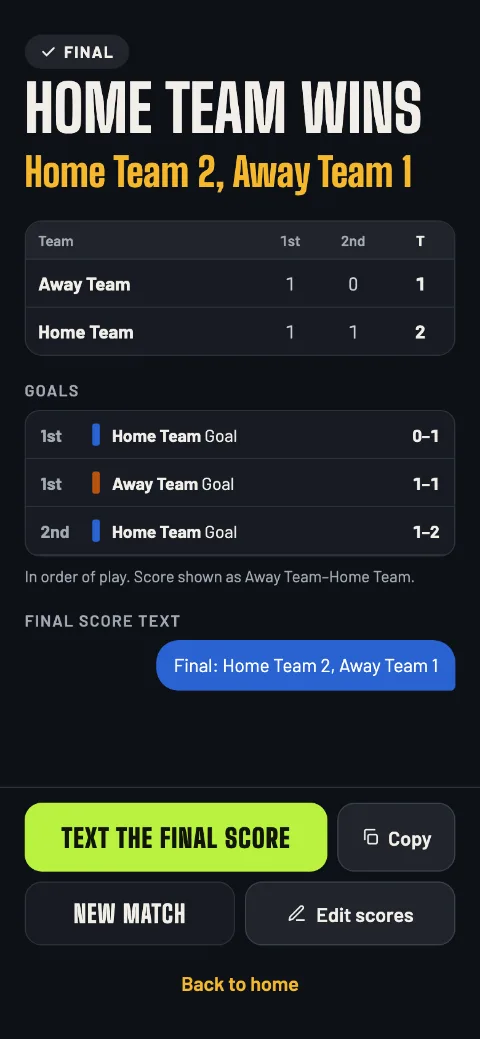
The final
For Grandma
What your family sees
They tap the link and the live page opens in their phone's browser. No app, no sign-in, no refreshing: the score changes by itself.
-
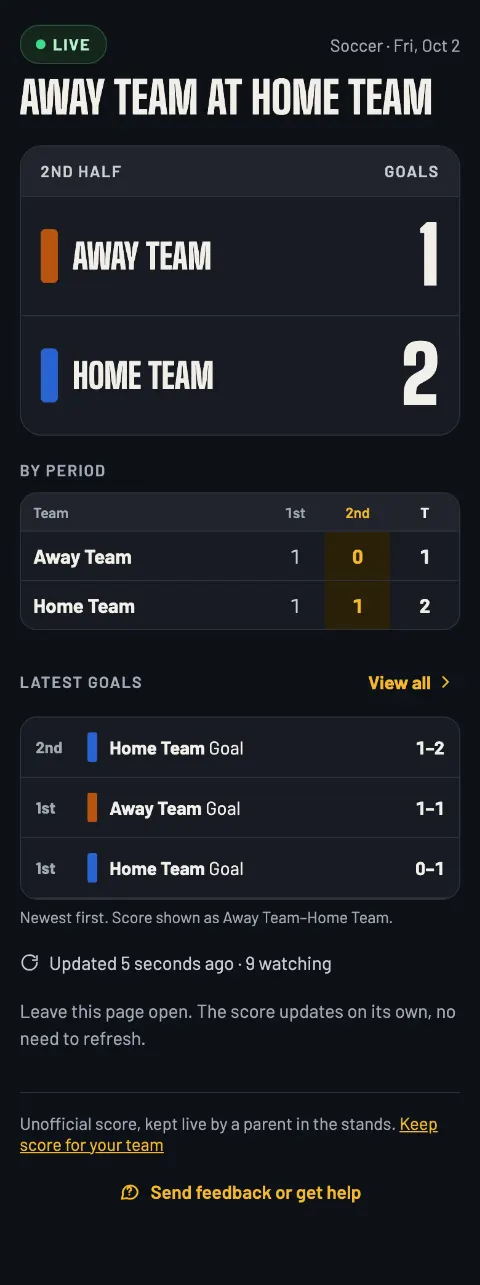
Live
The half or quarter, both scores, the score by period and the latest goals. “Updated 5 seconds ago · 9 watching” shows it's really live.
-
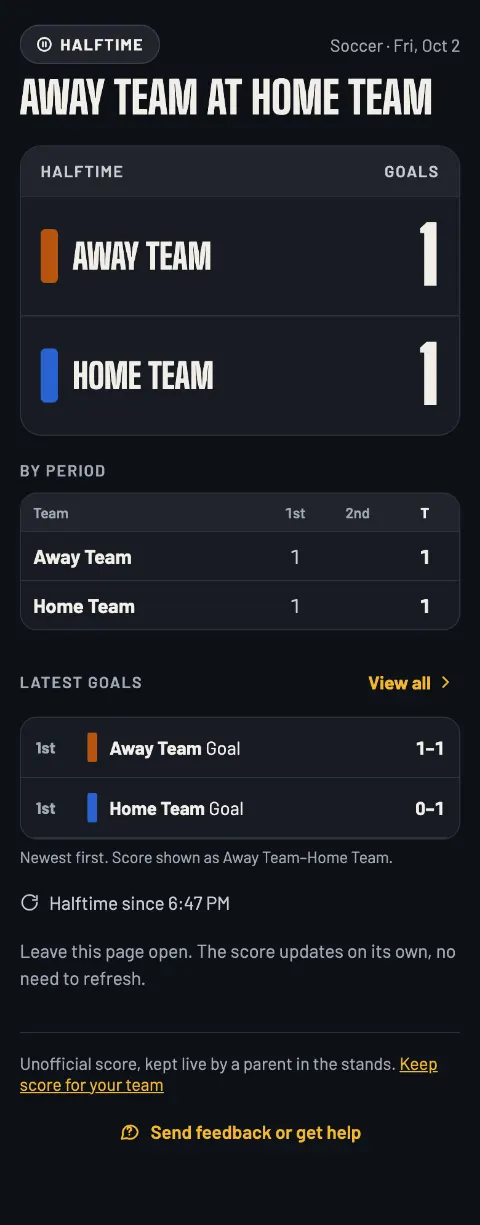
Breaks
“Halftime” or “End of Q1” and when it started, and “Penalty kicks” during a shootout. If your phone loses signal for 2 minutes, the page says Delayed instead, then catches up when you're back.
-
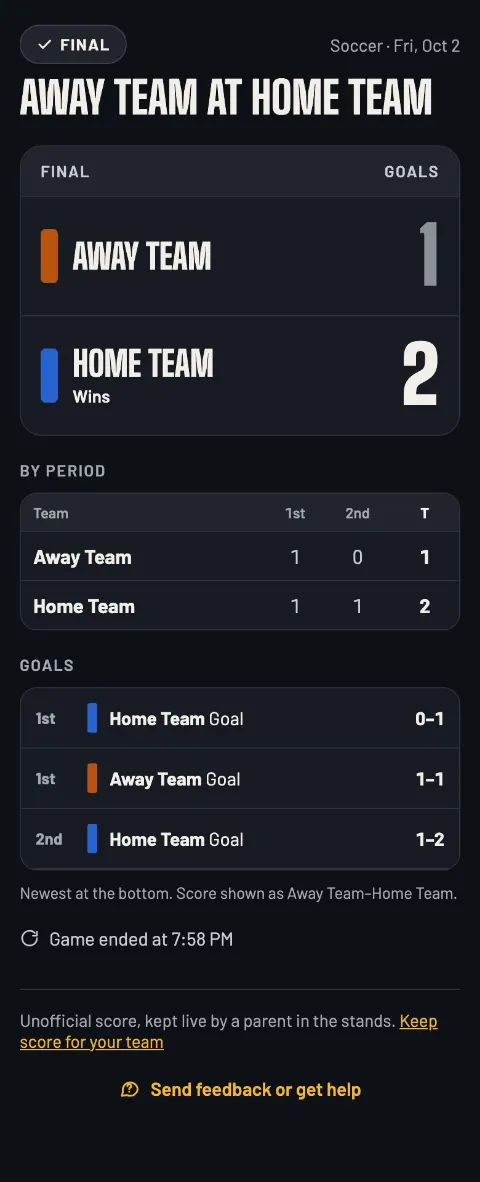
Final
The winner (or “Wins on penalty kicks”), every goal in order and when the game ended. The link keeps working after the game, so latecomers still see the result.
After a catch up that lowered a score, a note reads Score corrected at 7:31 PM. The scorer caught up on missed goals. After an edit to the final, it says the scorer fixed the goals after the game.
The rules the app follows
Exactly how the app scores a game, and what it doesn't do yet.
How it scores
- One goal per tap, for the team whose button you tap.
- 2 halves or 4 quarters. Halftime after the 1st half, or after Q2.
- Periods end when you say so. The game starts at Kick off or the first goal.
- Tied at the end: a tie, penalty kicks, or overtime (two full periods, OT1 and OT2, no golden goal) followed by a tie or penalty kicks, as you chose at setup.
- Penalty kicks are counted apart. They decide the winner but never change the goals, and they can't be changed after the game.
Not in soccer yet
- A game clock or stoppage time. You end each period yourself.
- Who scored, and following one player.
- Stats: shots, saves, cards.
Questions parents ask
Does my family need an app or an account?
No. They tap the link and the live page opens in their phone's browser: no app, no sign-in. You don't need an account to keep score either. Your games are saved on your phone.
What if I lose signal at the field?
Keep tapping. Every goal is saved on your phone and sent as soon as there's a signal; the pill shows how many taps are waiting, like Offline · 3 to send. Family sees Delayed after 2 minutes without news, then the score catches up.
I got there at halftime. Can I still score?
Yes. Tap Catch up, type each team's goals in the 1st half, pick the Period now, then tap Save & keep scoring.
The game went to penalty kicks. How do I score them?
If your setup has penalty kicks, a tie at the end offers Go to penalty kicks. Tap +1 for every kick a team makes; the goal score stays as it was. When one team is ahead, tap its finish button and confirm with Finish game.
Can I change the score after the game?
Yes. On the final screen, Edit scores lets you fix the goals in any period. The game stays final, the result follows the new totals, and family sees “Score corrected” with the new final. Penalty kicks can't be edited.
Can someone else take over scoring?
Yes, with your scorer link (Copy my scorer link on the Share screen). They open it on their phone with a signal and carry on, and your phone shows Scoring moved to another phone. Send it only to the person taking over: anyone with it can change the score.
Can people we didn't invite find the live page?
Each game gets its own random link, and live pages are hidden from search engines. Only people you send the link to can watch, and only someone with the scorer link can change the score.
How long does the live page stay up, and can I delete it?
Until 30 days after the last change to the score; a game nobody scored is removed after 48 hours. You can delete it any time you have a signal: Delete event in the game menu, or the trash button on the game in your list on the app's home screen (that's how you delete a finished one). Then the link shows “This event isn't available.”
Score your next game.
Open it on your phone on the sideline. No account needed.
Start a soccer game gamedayscore.liveGameDay also scores volleyball, football, basketball, baseball and softball, lacrosse, hockey and golf.
Read the volleyball guide Read the football guide Read the basketball guide Read the baseball & softball guide Read the lacrosse guide Read the hockey guide Read the golf guide Back to the home page